
Anúncios
Slow downloads and dropped connections can ruin the 5G experience you’re paying for. The right app can diagnose and fix that. 📶
Most people assume 5G speed depends entirely on their carrier or location. That’s only part of the story.
Device settings, network selection, and background apps all play a role in how fast your connection actually feels day to day.
Why Your 5G Signal Might Be Underperforming#
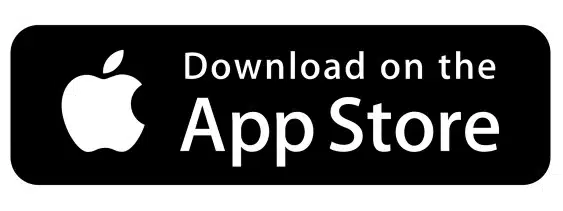
Carriers advertise theoretical peak speeds of up to 1-10 Gbps on mmWave 5G, but real-world performance rarely gets close. Most users see between 50 Mbps and 300 Mbps depending on tower distance, obstacles, and network congestion.

Several factors silently degrade your connection without you noticing:
- Band switching delays: phones sometimes stay locked on 4G LTE even when 5G is available nearby.
- Background data hogs: apps syncing in the background compete for bandwidth.
- Physical interference: concrete walls, metal structures, and even weather can cut signal strength by half.
- Outdated network settings: carrier APN configurations that haven’t refreshed in months.
A dedicated 5G optimization app addresses these issues directly, instead of leaving you guessing why your connection feels inconsistent.
What a 5G Booster App Actually Does#
These apps don’t physically increase your carrier’s bandwidth — no app can rewrite physics. What they do is smarter: they optimize how your device uses the signal it already receives.
Real-Time Speed Testing and Diagnostics#
A good app runs continuous or on-demand speed tests, measuring download speed, upload speed, latency (ping), and jitter. This gives you a clear baseline to compare before and after making changes.
Apps like 5GMark go further by mapping signal strength across different locations, helping you identify dead zones inside your home or office.
Network Selection and Band Optimization#
Many Android devices allow manual network mode selection. An optimization app can guide you toward forcing 5G NSA (Non-Standalone) or SA (Standalone) mode when your carrier supports it, rather than letting the phone default to LTE for “stability.”
Background Process Management#
Apps that constantly sync — cloud backups, social media, email — consume bandwidth silently. A connection booster app identifies which apps are eating your data in real time and lets you pause or limit them during critical tasks like video calls or large downloads.
Step-by-Step: Optimizing Your 5G Connection Today#
Here’s a practical sequence that actually moves the needle:
- Step 1: Run a baseline speed test at different times of day (morning, lunch, evening) to understand your real average speed.
- Step 2: Check your phone’s network settings and manually select 5G-only mode if your signal strength supports it.
- Step 3: Close or restrict background apps that aren’t essential during heavy usage sessions.
- Step 4: Reset network settings every few months to clear outdated APN or carrier configuration caches.
- Step 5: Move closer to a window or open area if you’re indoors — 5G mmWave signals struggle with thick walls.
- Step 6: Use an app-based signal map to find the strongest spot in your home for stationary tasks like gaming or streaming.
Each of these steps takes under five minutes but can add up to a noticeable improvement in consistency.
Comparing Connection Types: What 5G Actually Promises#
Understanding where 5G sits relative to older networks helps set realistic expectations when using any optimization tool.
| Network Type | Typical Speed | Typical Latency | Best Use Case |
|---|---|---|---|
| 4G LTE | 10-50 Mbps | 40-60 ms | Browsing, standard streaming |
| 5G Sub-6GHz | 50-300 Mbps | 20-30 ms | HD streaming, video calls, cloud gaming |
| 5G mmWave | 300 Mbps-1 Gbps+ | under 10 ms | 4K streaming, AR/VR, large file transfers |
Most everyday users connect to Sub-6GHz 5G rather than mmWave, since mmWave towers have shorter range and are mostly deployed in dense urban areas or stadiums.
Features Worth Looking For in a 5G Optimization App#
Not every app in this category delivers real value. Before downloading one, check whether it includes:
- Signal strength mapping with historical data, not just a single snapshot.
- Multi-server speed testing to rule out server-side bottlenecks skewing your results.
- Data usage breakdown by app, updated in real time.
- Network mode switching shortcuts without digging through phone settings menus.
- Exportable reports if you need to show your carrier evidence of poor coverage.
Apps that only offer a single speed test button with no historical tracking are far less useful for actually diagnosing recurring problems.
When the Problem Isn’t Your Phone#
Sometimes no app or setting change will fix a slow connection — because the bottleneck sits outside your device entirely.
Common external causes include:
- Network congestion: too many users on the same tower during peak hours (lunch, evenings).
- Carrier throttling: some plans deprioritize speeds after reaching a data threshold.
- Infrastructure gaps: rural or suburban areas often rely on fewer, farther-spaced towers.
- SIM card issues: an older SIM that doesn’t support 5G NR bands.
Running regular diagnostics with a dedicated app helps you figure out which category your problem falls into, instead of blaming your phone for a carrier-side limitation.
Making the Switch: A Practical Download Checklist#
If you’re ready to actually test and improve your connection today, an app focused on real-time speed testing, signal mapping, and background data control covers most of what you need.

Connection Stabilizer Booster
Installs10M+
Size73.5MB
PlatformAndroid/iOS
PriceFree
Information about size, installs, and rating may change as the app is updated in the official stores.
Once installed, give it a week of regular use before judging results. Signal behavior varies by time, location, and even weather, so a single test rarely tells the full story.
Track your speeds over several days, note where dead zones appear in your home, and adjust your network mode accordingly. Small, consistent checks beat one-time troubleshooting every time.
5G technology keeps evolving, and carriers continuously update their infrastructure. Staying on top of your own connection quality — rather than assuming it’s fixed or broken — puts you in control of the experience you’re actually paying for. 🚀
Keep reading
You might also like
How to Share Music App Status on WhatsApp Easily
Adding music to your WhatsApp status can turn a simple update into something people actually stop to watch. Here's how to do…
Amazon TV App: Complete Guide to Features and Setup
Streaming on Amazon Fire TV depends entirely on one piece of software: the Amazon TV app. Here's everything you need to know…