
Anúncios
The Google TV app turns scattered streaming subscriptions into one organized hub, helping you find shows faster across dozens of platforms. 📺
Juggling Netflix, Prime Video, Disney+, and five other apps just to find something worth watching gets exhausting fast. Google TV solves that specific headache by pulling everything into a single searchable interface.
This guide walks through what the app actually does, how it compares to alternatives, and whether it’s worth installing on your phone, tablet, or living room setup.
What Google TV Actually Does#
Google TV isn’t a streaming service itself. It’s a content aggregator and discovery layer that sits on top of your existing subscriptions.
Once you link your accounts, the app scans what’s available across each platform and builds a unified watchlist, recommendation feed, and search engine. Search for a movie title once, and it tells you exactly which app has it — free, included in your subscription, or available to rent.
The app replaced Google Play Movies & TV back in 2022, rebranding with a sharper focus on personalized recommendations powered by your viewing history and Google account data.
Core Features Worth Knowing#
- Universal search across 10,000+ movies and shows from connected apps
- “For You” tab with AI-driven suggestions based on watch history
- Watchlist syncing between phone, tablet, and TV devices
- Live TV integration for channels like Pluto TV, Tubi, and local broadcast apps in supported regions
- Google Play Store built-in for renting or buying titles not on subscription services
Google TV vs. Other Streaming Hubs#
Several platforms try to solve the same fragmentation problem. Here’s how Google TV stacks up against the competition:
| Feature | Google TV | Apple TV App | Roku |
|---|---|---|---|
| Cross-platform availability | Android, iOS, Web, Smart TVs | iOS, Apple TV, limited Android | Roku devices only |
| Free ad-supported channels | Yes (varies by region) | Limited | Extensive (Roku Channel) |
| Purchase/rental store | Google Play built-in | iTunes built-in | Third-party only |
| Smart TV integration | Native on Google TV/Android TV devices | Native on Apple TV only | Native on Roku hardware |
The biggest advantage Google TV holds is its reach. It runs natively on Android TV devices, Chromecast with Google TV, Sony and TCL smart TVs, plus mobile apps for both Android and iOS. Apple’s ecosystem app, by contrast, stays mostly locked to Apple hardware.
Setting Up the App for Maximum Value#
Getting the most out of Google TV isn’t automatic. A few setup steps make a real difference in how useful the recommendations become.
Step-by-Step Configuration#
- Sign in with the same Google account you use on your Chromecast or Android TV for watchlist syncing
- Link streaming subscriptions individually under Settings → Linked Apps
- Rate a handful of movies or shows early on — the algorithm needs data points to improve suggestions
- Enable notifications for new episodes of shows already in your watchlist
- Turn on parental controls if the household includes kids’ profiles
Skipping the linking step is the most common mistake. Without it, Google TV only shows content from apps you’ve purchased through Google Play, missing out on Netflix, Hulu, or Max libraries entirely.

Google TV
Installs10B+
Size73.9MB
PlatformAndroid/iOS
PriceFree
Information about size, installs, and rating may change as the app is updated in the official stores.
Device Compatibility and Performance#
Google TV performs differently depending on hardware. On a Chromecast with Google TV (4K model), menu navigation feels instant and the interface loads full-resolution thumbnails without lag.
On older Android TV boxes or budget smart TVs running Android TV OS 9 or earlier, expect slower transitions and occasional app crashes when switching between heavy video apps.
Minimum Requirements#
- Android: version 7.0 (Nougat) or higher
- iOS: version 15.0 or higher
- Smart TVs: Android TV OS 10+ recommended for smooth 4K playback
- Storage: approximately 150MB free space for the mobile app
Mobile users should note that the app’s casting feature works best over a stable 5GHz Wi-Fi connection. Casting over 2.4GHz networks sometimes introduces buffering, especially with 4K HDR content.
Privacy and Data Considerations#
Google TV’s recommendation engine runs on data collection — that’s the tradeoff for personalized suggestions. The app tracks:
- Search queries within the app
- Viewing history across linked streaming services
- Time spent browsing specific genres or titles
- Device location (for regional content licensing accuracy)
Users concerned about data tracking can limit activity history through myactivity.google.com, though doing so weakens the “For You” recommendation quality noticeably.
Common Problems and Practical Fixes#
A few recurring issues show up in user reviews and support forums. Most have straightforward solutions.
App Showing Outdated Content Availability#
Licensing changes happen constantly — a title available on Netflix this month might move to Paramount+ next month. Google TV’s database sometimes lags behind by a few days. If a show seems to vanish, clearing the app cache usually forces a refresh.
Watchlist Not Syncing Across Devices#
This almost always traces back to multiple Google accounts. Check that the phone, tablet, and TV are all signed into the identical account under Settings → Accounts.
Playback Errors on Linked Apps#
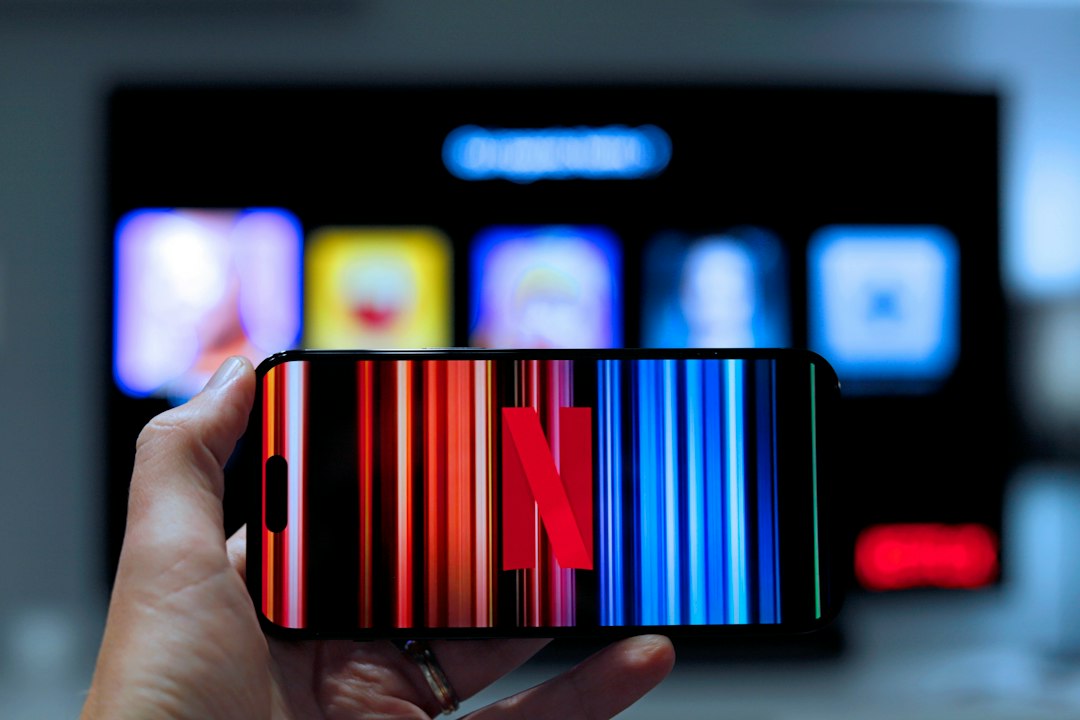
Google TV launches the third-party app to actually play content — it doesn’t stream directly for most services. If playback fails, the issue usually sits with the destination app (Netflix, Hulu, etc.), not Google TV itself. Updating that specific app typically resolves it.
Is It Worth Installing?#
For households juggling three or more streaming subscriptions, Google TV genuinely saves time. The search-once-find-anywhere approach beats opening five separate apps to locate a single movie.
Single-service users — someone with just Netflix, for example — won’t see much benefit, since that app’s native search already covers their entire library.
The app works particularly well for families sharing a smart TV, where different members want personalized recommendations without creating separate device profiles for every streaming service individually.
Downloading takes under two minutes, and there’s no cost beyond the subscriptions you already pay for. Worth trying for anyone tired of the “which app had that show again?” routine. 🎬
Keep reading
You might also like

How to Share Music App Status on WhatsApp Easily
Adding music to your WhatsApp status can turn a simple update into something people actually stop to watch. Here's how to do…
Amazon TV App: Complete Guide to Features and Setup
Streaming on Amazon Fire TV depends entirely on one piece of software: the Amazon TV app. Here's everything you need to know…